A title in five minutes
You will make a headline that slides in, settles with an ease, and exports as an MP4. Five steps, no setup.
1. Start a project
- Open open.solomotion.app.
- Under New project, pick YouTube (1920×1080).
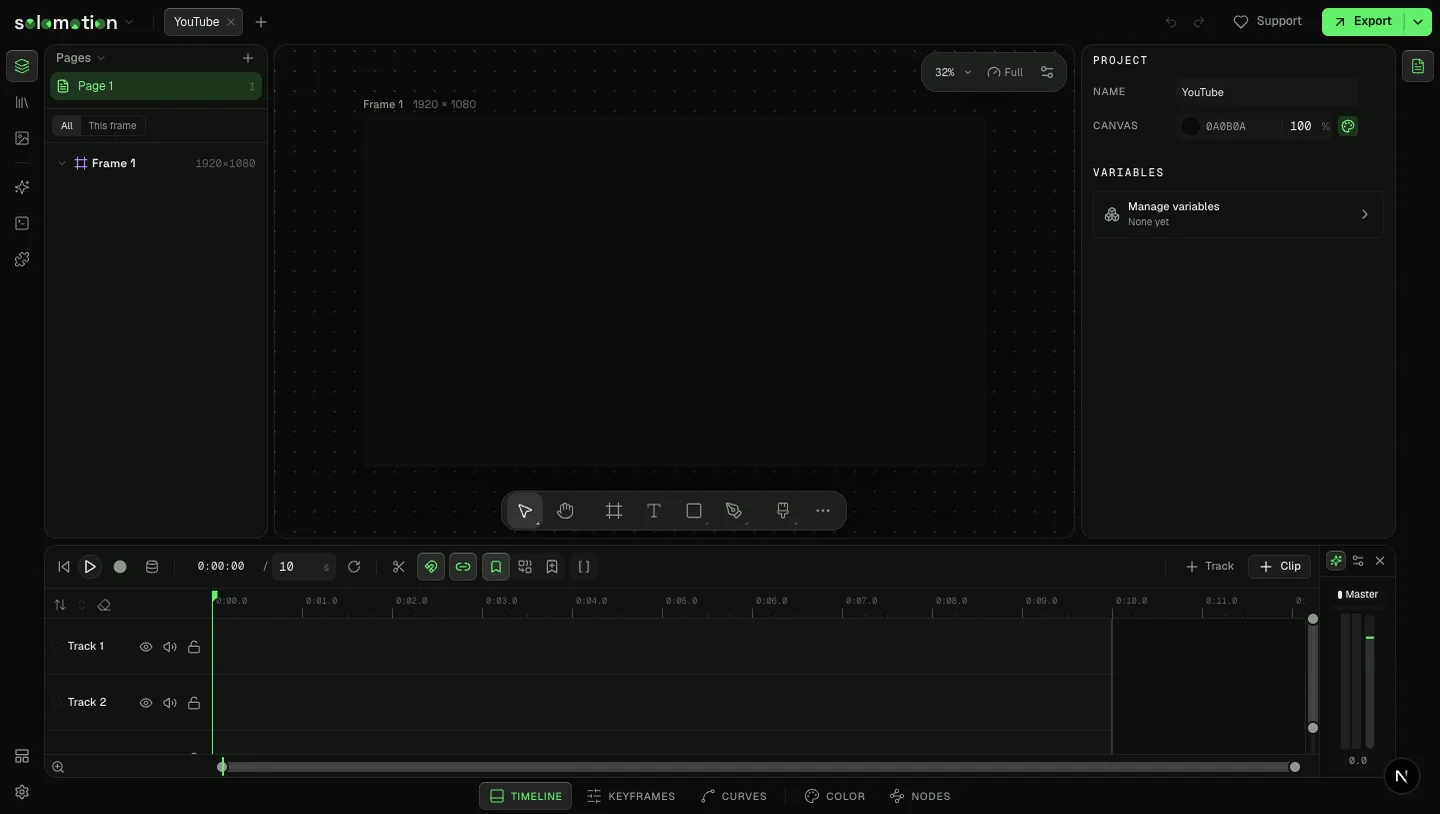
The editor opens on one frame, empty, ten seconds long.
2. Type the headline
- Press T for the Text tool.
- Click the middle of the frame and type
Hello, motion. - Press Esc to finish, then V for the Move tool.
The inspector on the right now shows the text: Typography for the font and size, Transform for where it sits.
3. Set two keyframes
- Press Home to put the playhead at the start.
- Drag the text off the left edge of the frame.
- In the inspector, click the diamond beside Transform. That keys position, scale and rotation at 0:00.
- Step forward 24 frames: press . until the timecode reads
0:00:24. - Drag the text back to the centre. A second key lands, because the property is already keyed.
Press Space. The headline slides in, at a constant speed. It looks mechanical. That is the next step.
4. Ease it in
- Open Keyframes in the bar under the timeline.
- Drag a box around both keys to select them.
- Press E and pick Expo Out.
Play again. The text arrives fast and settles. Entrances ease out; exits ease in. Keyframes and easing has the rest.
5. Export the MP4
- Click Export at the top right.
- Leave MP4 selected. Check Size and Frame rate.
- Click Render.
The file lands in your downloads. Press ⌘CtrlS to save the project as a .motion file you can open later.