Bend the path it takes
Every position key you set becomes a point on a curve you can see and edit on the stage.
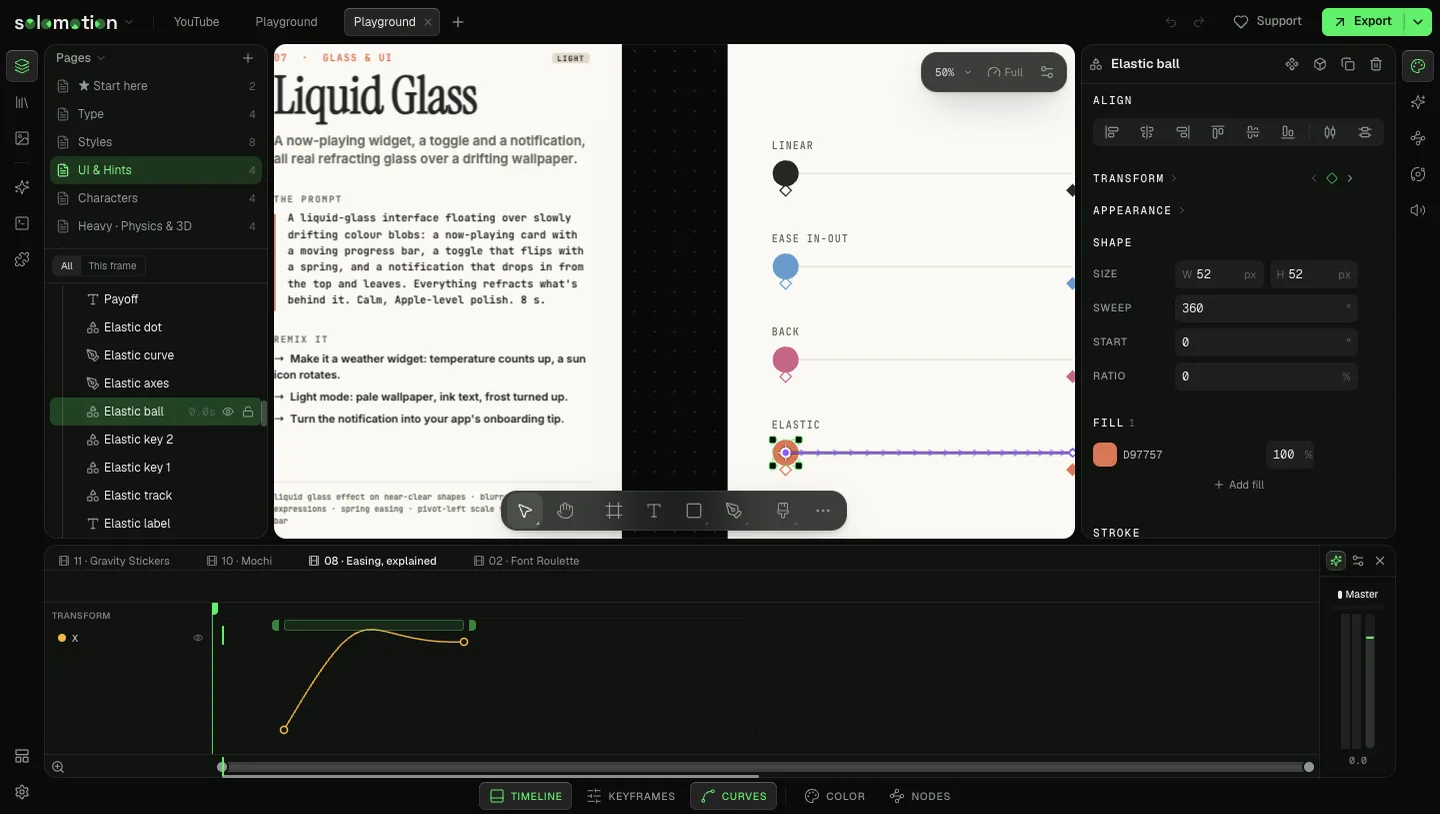
Draw a path with keys
- Select a layer. Move the playhead to where it starts.
- In Properties, click the diamond beside Position.
- Move the playhead later. Drag the layer to a new place. A second key lands there.
- Repeat for each stop. Each key is an anchor on the path.
The path draws on the stage while the layer is selected. Small marks along it show the direction of travel. They bunch up where the layer moves slowly and spread out where it moves fast.
Bend the curve
- Drag a segment of the path to bend it. The tangents update as you pull.
- Drag an anchor to move that key. The layer arrives at the new place at the same time.
- Drag a handle to steer one side of an anchor. Hold Shift to lock the handle to a 15 degree angle.
- Hold Alt while you drag a handle to move only that side. The other side stays.
- Drop a handle back on its anchor to remove it. The point becomes a corner.
Timing and shape are separate. The path decides where the layer goes. The easing on each key decides how fast it gets there.
Add, smooth and delete points
- Double-click the curve to plant a new key exactly on the path. The shape does not change.
- Double-click an anchor to switch it between smooth and corner.
- Right-click an anchor and pick Make smooth (curved), Make corner (straight) or Delete point.
Show or hide paths
Open the View menu and toggle Motion paths. The same toggle sits in the stage view controls. Paths show for the selected layers only.
Locked layers show their paths but you cannot edit them. Unlock first with ⌘Ctrl⇧ShiftL.
3D worlds have their own Motion paths toggle in the world view controls.
Ask an agent
Agents write paths with keyframes_set on position. Each key accepts arc, the height in pixels of a thrown arc that leaves it, and in and out handles in pixels for any other curve. Read the result with keyframes_inspect, where a curved key is marked.
Throw the ball from the left ledge to the right ledge in an arc 180 px high, landing at 1.2 seconds.